Managing Home Screen Tiles and Visibility in RoundHoop POS
Learn how to pin rounding shortcuts to your Shopify POS home screen and manage tile visibility.
We are excited to announce a major update to RoundHoop for Shopify POS! Based on merchant feedback, we have completely overhauled how tiles appear on your POS screen, giving you more control and a cleaner checkout environment.
Download the App from Shopify : Roundhoop - Cash rounding made easy on POS
Video Demo
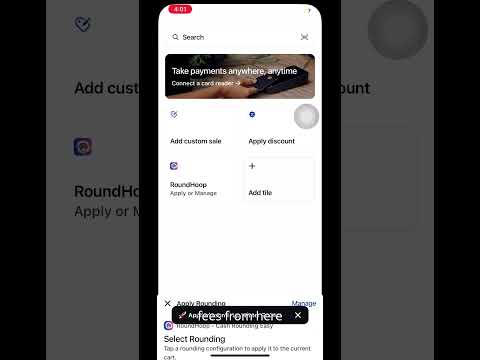
Watch this 60-second walkthrough to see the new Pinned Tiles feature in action:
What's New?
1. The RoundHoop Hub
We have consolidated the extension into a single "RoundHoop" tile. This acts as your main dashboard where you can apply roundings or manage your settings without cluttering your POS grid.
2. Pinned Shortcuts (Home Screen Tiles)
You can now choose exactly which roundings appear as dedicated tiles on your home screen.
- Pinned (Yes): Creates a dedicated shortcut tile for instant application.
- Manual (No): Keeps the rounding inside the RoundHoop app, accessible via the "Apply" list.
3. Native UI Refinements
The entire interface has been updated to match the latest Shopify POS 2025-04 design language.
- Segmented Buttons: Easier to tap on tablet screens.
- Clear Status: Easily see if a rule is "Enabled" or "Disabled" before saving.
- Safety Dialogs: Confirmation pop-ups prevent accidental deletion of your rounding rules.
How to Pin a Tile to Home Screen
- Step 1: Open the RoundHoop tile on your POS home screen.
- Step 2: Tap on Manage to see your list of rules.
- Step 3: Tap on the rule you wish to modify.
- Step 4: Scroll to the Visibility section.
- Step 5: Select Pinned (Yes).
- Step 6: Hit Save at the top right.
Note: You may need to restart the Shopify POS app (close and reopen) to see the Home Screen tile updates take effect.
Summary of Settings
- Strategy: Choose between "Round Up" or "Round Down".
- Apply To: Choose "GrandTotal" (post-tax) or "Subtotal" (pre-tax).
- Status: Mark a rule as "Enabled" to make it active in your store.
Please Note: To keep your POS clean, only pin the roundings you use most frequently. All other active rules are always available inside the main RoundHoop "Apply" screen.